
Fake APK download buttons are a common problem on some websites that provide Android applications and APK files. These buttons can confuse users by appearing similar to the real download option, leading to unexpected pages, unrelated files, advertisements, or downloads that are different from the application you intended to install.
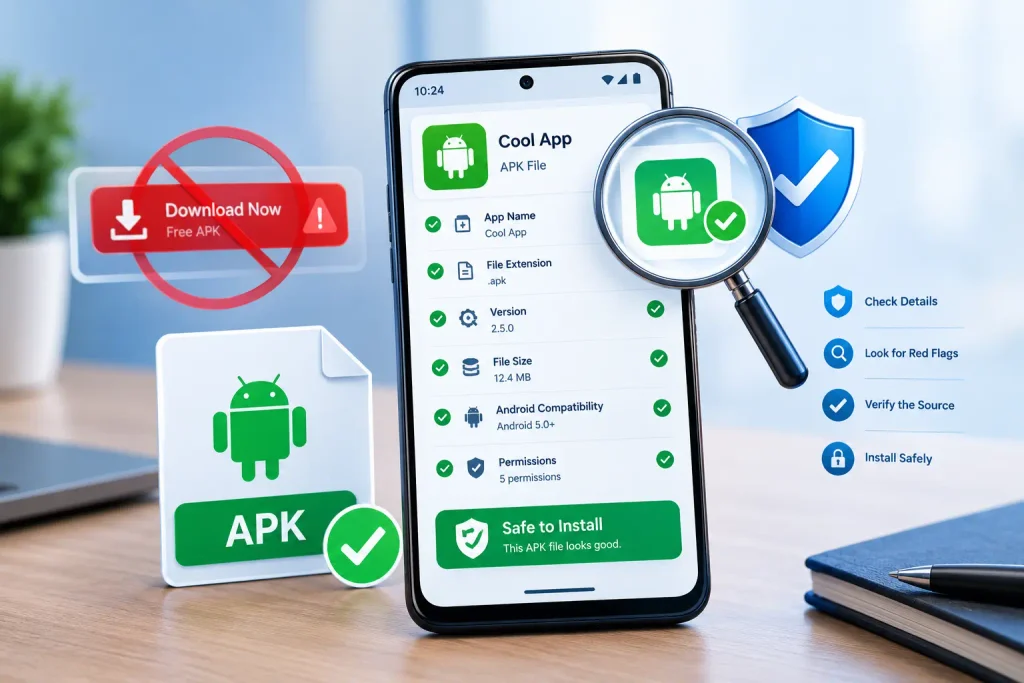
Learning how to identify fake APK download buttons can help you avoid unnecessary downloads and make more informed decisions before installing an Android app.
This guide explains how fake download buttons work, what warning signs to look for, and how to reduce the risk of downloading the wrong file.
What Are Fake APK Download Buttons?
Fake APK download buttons are links, banners, or advertisements designed to look like the actual APK download option.
On some websites, several buttons may appear on the same page:
- Real APK download button
- Advertisement buttons
- Redirect links
- Sponsored download links
- Pop-up download prompts
The presence of multiple buttons can make it difficult to identify the correct download option.
Before downloading any APK, take a moment to confirm that the button belongs to the application page you intended to visit.
Why Are Fake Download Buttons a Problem?
A misleading button may:
- Redirect you to another website
- Start an unrelated file download
- Open multiple browser tabs
- Display repeated advertisements
- Ask you to install additional software
- Request unnecessary permissions
- Show confusing instructions
Not every advertisement is harmful, but users should distinguish between content related to the intended APK and unrelated download prompts.
Common Signs of Fake APK Download Buttons
Several warning signs may indicate that a download button is not related to the APK you want.
1. Multiple Large Download Buttons
If a page shows several large “Download Now” buttons, verify which one belongs to the APK information you are reading.
A genuine download button is usually located near:
- App information
- Version details
- File size
- Android requirements
- Installation instructions
Buttons placed far away from the APK information may deserve additional attention.
2. Unexpected Redirects
If clicking a button opens several tabs, redirects you to another website, or takes you to an unrelated page, stop and review the process.
Repeated redirects can make it difficult to determine what file is actually being downloaded.
3. Download Starts Automatically
Be careful if a file starts downloading automatically before you confirm what it is.
Before opening a downloaded file, check:
- File name
- File extension
- Application name
- File size
A normal Android installation file should use the .apk extension.
4. Unrelated Advertisements
Some pages contain advertisements that resemble APK download buttons.
Check whether the button:
- Matches the application name
- Appears near app information
- Displays version details
- Leads to the intended file
Do not assume that the largest button is always the correct one.
5. Misleading Button Text
Be cautious with buttons that use unclear wording such as:
- Fast Download
- Instant Download
- Premium Download
- Special Download
Instead, verify whether the button is clearly associated with the APK page and app information.
How to Check the Correct APK Download Button
Before clicking any button:
- Read the app information.
- Check the application name.
- Review the version number.
- Confirm the file size.
- Look for Android compatibility details.
- Read installation instructions.
- Verify the button location.
The download process should make sense in relation to the information displayed on the page.
For additional guidance, see our How to Install an APK File on Android guide for general APK installation steps.
Compare the APK Details Before Downloading
Before downloading an APK, compare:
- App name
- Version
- File size
- Android requirements
- Update date
- App description
If these details do not match the application you want, review the page carefully before continuing.
Before downloading an APK, check that you are viewing the correct information for the intended app, such as our 98S Game page.
You can also review our How to Check if an APK Is Safe guide for additional checks before installation.
Be Careful With Pop-Ups
Pop-ups can sometimes resemble APK download prompts.
Before clicking:
- Read the message carefully.
- Check the website address.
- Close unexpected tabs.
- Return to the original page if necessary.
Avoid downloading files from pop-ups that appear unrelated to the app you intended to install.
How to Check the Downloaded File
After downloading:
Check the File Name
The file name should match the intended application.
Check the File Extension
Android installation packages normally use the .apk extension.
Check File Size
If the file size differs significantly from the information provided on the page, review it before opening.
Review the Download Location
Know where the file was saved so you can verify it before installation.
Fake APK Buttons on Mobile Devices
Small screens can make it harder to distinguish between advertisements and real download options.
On Android devices:
- Scroll carefully.
- Read surrounding text.
- Avoid tapping quickly.
- Check the app information first.
- Confirm the button is related to the intended APK.
Taking a few extra seconds can help reduce mistakes.
What Should You Do If You Downloaded the Wrong File?
If you accidentally download the wrong file:
- Do not install it immediately.
- Check the file name.
- Review the extension.
- Delete the file if it appears unrelated.
- Return to the original page.
- Verify the correct download button.
If you already installed an unexpected application, review its permissions and consider uninstalling it if necessary.
For Android’s built-in security guidance, you can also review information from Google Play Protect.
How to Stay Safe While Downloading APK Files
Before downloading:
- Confirm the application name.
- Check version information.
- Review Android compatibility.
- Verify file size.
- Read installation instructions.
- Check permissions.
- Avoid suspicious redirects.
- Be careful with pop-ups.
- Keep Android security features enabled.
These steps can help reduce the chance of downloading the wrong file.
Are Fake APK Download Buttons Always Dangerous?
Not necessarily.
Some misleading buttons may simply lead to advertisements or unrelated pages. However, users should still confirm what they are downloading before opening a file.
The goal is not to assume every button is harmful but to verify that the downloaded file matches the intended application.
FAQs
What is a fake APK download button?
A fake APK download button is a link, advertisement, or banner that appears similar to the real APK download option but may lead to unrelated pages or files.
How can I identify the correct APK download button?
Check the app name, version, file size, Android requirements, and whether the button is placed near the application’s information.
Should I open a downloaded file immediately?
It is better to check the file name, extension, and size before opening or installing it.
Are advertisements always fake download buttons?
No. Some advertisements are clearly labeled, but users should distinguish them from the actual APK download option.
What should I do if I download the wrong file?
Delete the file if it does not match the intended application and return to the original page to verify the correct download button.
Can fake buttons appear on mobile devices?
Yes. Smaller screens can make advertisements and download links more difficult to distinguish.
Final Thoughts
Fake APK download buttons can confuse users and lead to unintended downloads, advertisements, or unrelated files. Before downloading any APK, take time to confirm the application details, version information, file size, and the location of the actual download button.
Reading the app information carefully and checking the downloaded file before installation can help reduce mistakes and improve the overall APK installation experience.
For more Android APK guides, installation information, troubleshooting tips, and safety resources, visit our homepage.